This tutorial will quickly walk through the basics of Git.
What is Git?
Git is a distributed version-control system. In a distributed version-control system a developer follows the following workflow:
- The distributed repository is cloned (pulled) by every developer. A developer clones it from another developer or from a central location (if there are a lot of developers then a central location is preferred).
- Once a developer has made a group of changes by committing changes to the local repository, he/she then pushes the changes to another developer or to the central location. Another developer can also pull your commits to see the changes.
- A developer updates her/his local repository by merging it with the pulled commits. Git attempts to merge changes automatically, if there are conflicts then the developer resolves them manually.
This tutorial shows how to create a new repository and use the basic git commands.
Downloading and installing
Follow this quick tutorial to install Git on Windows. On Linux, git can be install by the following command:
sudo apt install git
Working with Git
Creating new repository
New repository can be created by command:
git init
Let's create an example directory 'example-project':
D:>mkdir example-project
D:>cd example-project
Creating git repository
D:\example-project>git init
Initialized empty Git repository in D:/example-project/.git
D:\example-project>dir /a /b
.git
The folder .git is where the repository is stored. It contains the database of all metadata and version history etc.
Checking status
Following command shows working tree status. It also suggests the possible actions to perform next:
git status
D:\example-project>git status
On branch master

No commits yet

nothing to commit (create/copy files and use "git add" to track)
Adding new files
A new file can be added to git by using:
git add <theFile>
Above command does not commit the file but adds it to the git's staging area. When a file is in staging area Git tracks that file.
Adding a new file 'myfile.txt':
D:\example-project>echo hello> myfile.txt
Adding the file to the git:
D:\example-project>git add myfile.txt
Checking status again:
D:\example-project>git status
On branch master

No commits yet

Changes to be committed:
  (use "git rm --cached <file>..." to unstage)

	new file:   myfile.txt
Listing files managed by git
git ls-files
D:\example-project>git ls-files
myfile.txt
Commit changes
To commit changes to local repository:
git commit -m "my change description"
D:\example-project>git commit -m "first change"

*** Please tell me who you are.

Run

  git config --global user.email "you@example.com"
  git config --global user.name "Your Name"

to set your account's default identity.
Omit --global to set the identity only in this repository.

fatal: unable to auto-detect email address (got 'Joe@JoeMchn.(none)')
If this is the first time your are committing, you will get the above message and commit will fail. Follow the instructions and enter your name and email address:
D:\example-project>git config --global user.name "Joe"
D:\example-project>git config --global user.email "joe@example.com"
Commit again:
D:\example-project>git commit -m "first change"
[master (root-commit) 7871adb] first change
 1 file changed, 1 insertion(+)
 create mode 100644 myfile.txt
Checking status:
D:\example-project>git status
On branch master
nothing to commit, working tree clean
Commit history
git log
D:\example-project>git log
commit 7871adb4fc2f76a84d27f4cb53b6dfafcdccadd2
Author: Joe <joe@example.com>
Date:   Mon Oct 29 22:01:54 2018 -0500

    first change
Make more changes
D:\example-project>echo more text >> myfile.txt
Viewing difference
git diff <file-name>
D:\example-project>git diff myfile.txt
diff --git a/myfile.txt b/myfile.txt
index ce01362..f038e11 100644
--- a/myfile.txt
+++ b/myfile.txt
@@ -1 +1,2 @@
 hello
+more text
Checking status:
D:\example-project>git status
On branch master
Changes not staged for commit:
  (use "git add <file>..." to update what will be committed)
  (use "git checkout -- <file>..." to discard changes in working directory)

	modified:   myfile.txt

no changes added to commit (use "git add" and/or "git commit -a")
Adding to git:
D:\example-project>git add myfile.txt
Status:
D:\example-project>git status
On branch master
Changes to be committed:
  (use "git reset HEAD <file>..." to unstage)

	modified:   myfile.txt
Committing:
D:\example-project>git commit -m "second change"
[master 5a7738c] second change
 1 file changed, 1 insertion(+)
Log:
D:\example-project>git log
commit 5a7738c59c83eed6e272817c6fb296ae0925a123
Author: Joe <joe@example.com>
Date:   Mon Oct 29 22:02:33 2018 -0500

    second change

commit 7871adb4fc2f76a84d27f4cb53b6dfafcdccadd2
Author: Joe <joe@example.com>
Date:   Mon Oct 29 22:01:54 2018 -0500

    first change
Git Help
git help
D:\example-project>git help
usage: git [--version] [--help] [-C <path>] [-c <name>=<value>]
           [--exec-path[=<path>]] [--html-path] [--man-path] [--info-path]
           [-p | --paginate | -P | --no-pager] [--no-replace-objects] [--bare]
           [--git-dir=<path>] [--work-tree=<path>] [--namespace=<name>]
           <command> [<args>]

These are common Git commands used in various situations:

start a working area (see also: git help tutorial)
   clone      Clone a repository into a new directory
   init       Create an empty Git repository or reinitialize an existing one

work on the current change (see also: git help everyday)
   add        Add file contents to the index
   mv         Move or rename a file, a directory, or a symlink
   reset      Reset current HEAD to the specified state
   rm         Remove files from the working tree and from the index

examine the history and state (see also: git help revisions)
   bisect     Use binary search to find the commit that introduced a bug
   grep       Print lines matching a pattern
   log        Show commit logs
   show       Show various types of objects
   status     Show the working tree status

grow, mark and tweak your common history
   branch     List, create, or delete branches
   checkout   Switch branches or restore working tree files
   commit     Record changes to the repository
   diff       Show changes between commits, commit and working tree, etc
   merge      Join two or more development histories together
   rebase     Reapply commits on top of another base tip
   tag        Create, list, delete or verify a tag object signed with GPG

collaborate (see also: git help workflows)
   fetch      Download objects and refs from another repository
   pull       Fetch from and integrate with another repository or a local branch
   push       Update remote refs along with associated objects

'git help -a' and 'git help -g' list available subcommands and some
concept guides. See 'git help <command>' or 'git help <concept>'
to read about a specific subcommand or concept.
To list all git commands:
git help -a
D:\example-project>git help -a
usage: git [--version] [--help] [-C <path>] [-c <name>=<value>]
           [--exec-path[=<path>]] [--html-path] [--man-path] [--info-path]
           [-p | --paginate | -P | --no-pager] [--no-replace-objects] [--bare]
           [--git-dir=<path>] [--work-tree=<path>] [--namespace=<name>]
           <command> [<args>]

available git commands in 'D:/Program Files/Git/mingw64/libexec/git-core'

  add                     get-tar-commit-id       rebase--interactive
  add--interactive        grep                    receive-pack
  am                      gui                     reflog
  annotate                gui--askpass            remote
  apply                   gui--askyesno           remote-ext
  archive                 gui.tcl                 remote-fd
  askpass                 hash-object             remote-ftp
  bisect                  help                    remote-ftps
  bisect--helper          http-backend            remote-http
  blame                   http-fetch              remote-https
  branch                  http-push               repack
  bundle                  imap-send               replace
  cat-file                index-pack              request-pull
  check-attr              init                    rerere
  check-ignore            init-db                 reset
  check-mailmap           instaweb                rev-list
  check-ref-format        interpret-trailers      rev-parse
  checkout                legacy-rebase           revert
  checkout-index          legacy-stash            rm
  cherry                  log                     send-email
  cherry-pick             ls-files                send-pack
  citool                  ls-remote               serve
  clean                   ls-tree                 sh-i18n--envsubst
  clone                   mailinfo                shortlog
  column                  mailsplit               show
  commit                  merge                   show-branch
  commit-graph            merge-base              show-index
  commit-tree             merge-file              show-ref
  config                  merge-index             stage
  count-objects           merge-octopus           stash
  credential              merge-one-file          status
  credential-manager      merge-ours              stripspace
  credential-store        merge-recursive         submodule
  credential-wincred      merge-resolve           submodule--helper
  cvsexportcommit         merge-subtree           subtree
  cvsimport               merge-tree              svn
  daemon                  mergetool               symbolic-ref
  describe                mktag                   tag
  diff                    mktree                  unpack-file
  diff-files              mv                      unpack-objects
  diff-index              name-rev                update
  diff-tree               notes                   update-git-for-windows
  difftool                p4                      update-index
  difftool--helper        pack-objects            update-ref
  fast-export             pack-redundant          update-server-info
  fast-import             pack-refs               upload-archive
  fetch                   patch-id                upload-pack
  fetch-pack              prune                   var
  filter-branch           prune-packed            verify-commit
  fmt-merge-msg           pull                    verify-pack
  for-each-ref            push                    verify-tag
  format-patch            quiltimport             web--browse
  fsck                    range-diff              whatchanged
  fsck-objects            read-tree               worktree
  gc                      rebase                  write-tree

git commands available from elsewhere on your $PATH

  flow  lfs

'git help -a' and 'git help -g' list available subcommands and some
concept guides. See 'git help <command>' or 'git help <concept>'
to read about a specific subcommand or concept.
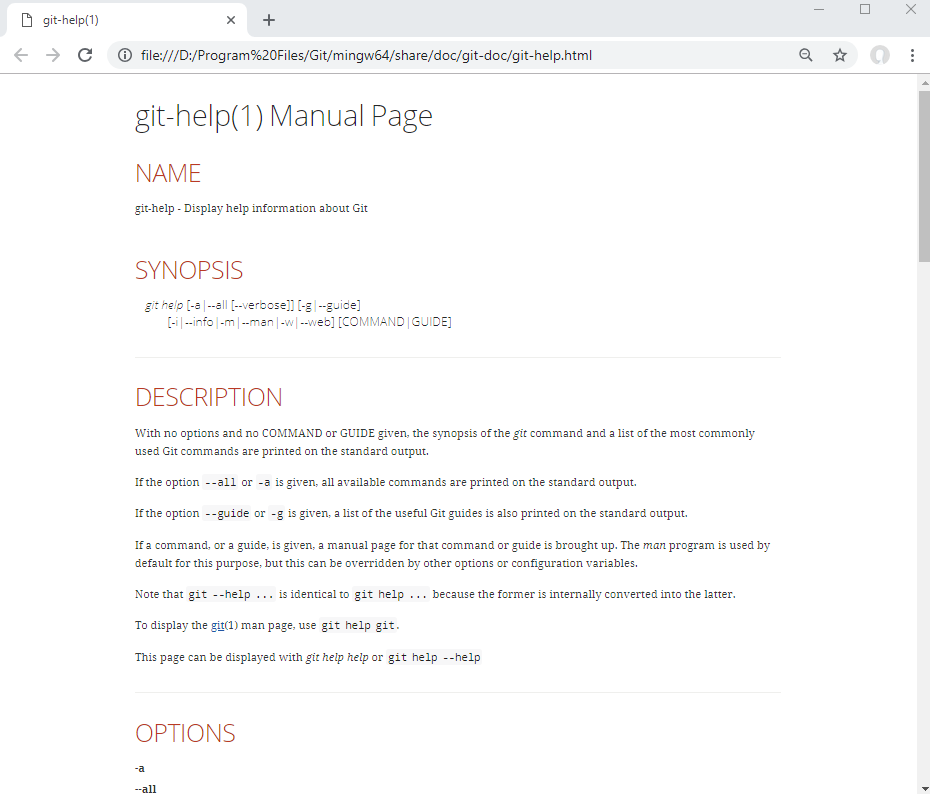
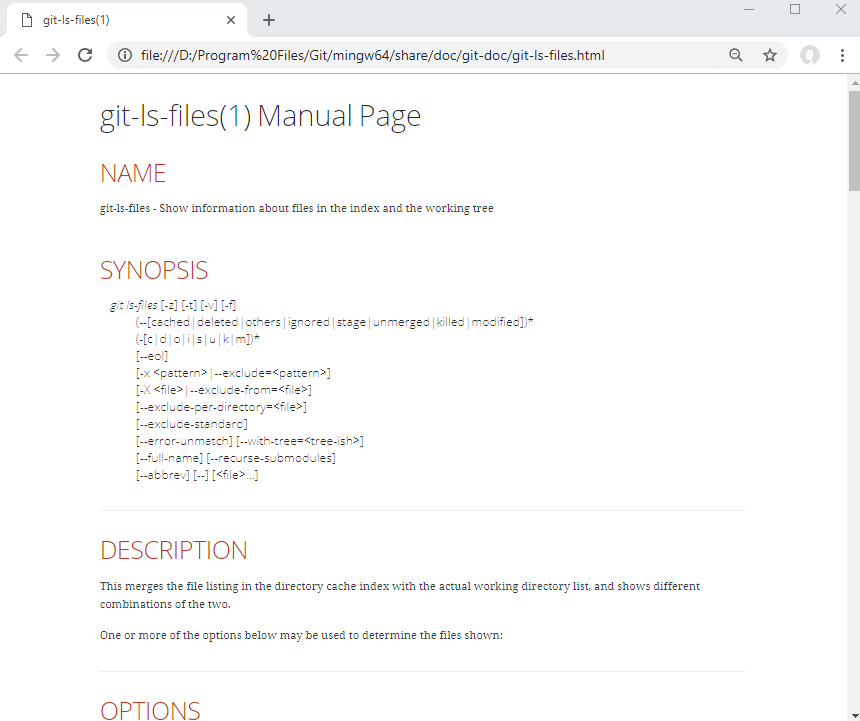
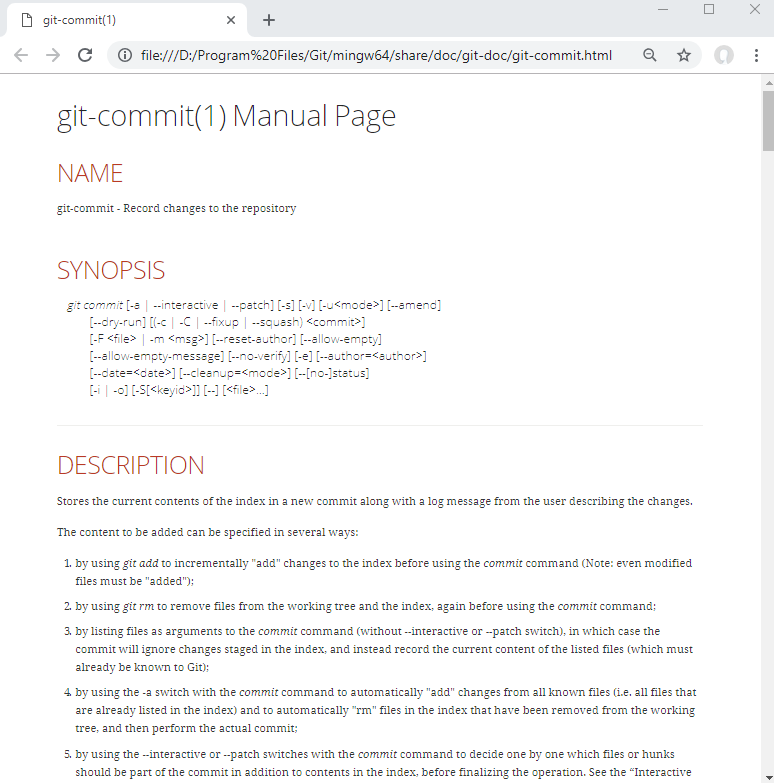
To get help on a particular command, use --help option
D:\example-project>git help --help
That opens a help web page:
D:\example-project>git ls-files --help
D:\example-project>git commit --help
|
